


What We Do




Windows Live Mail Setup
To set up Windows Live Mail for IMAP, perform the following steps:
1. If this is the first time that you have used Windows Live Mail, the Add an E-mail Account wizard will start automatically. If you already have an email account in Windows Live Mail, click the Add e-mail account link.
2. Enter the following information:
- E-mail Address—Enter your entire email address (e.g., This email address is being protected from spambots. You need JavaScript enabled to view it.).
- Password—Enter the password for your email account.
- Display Name—Enter your first and last name. This is the name that will appear in the From field of messages you send.
3. Click the Next button.
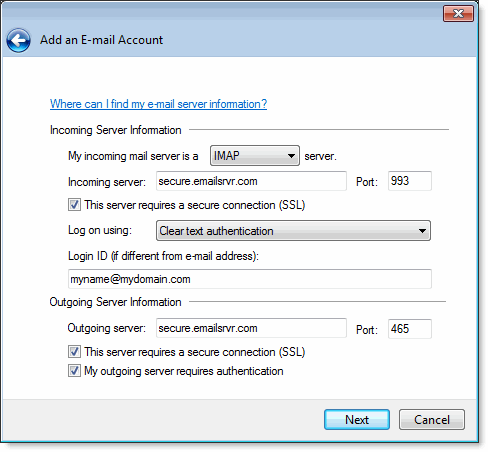
4. Enter the following information:
- My incoming server is a—Select IMAP.
- Incoming server—Enter the secure server name: secure.emailsrvr.com
- Select the This server requires a secure connection (SSL) check box.
- Port—Ensure that 993 has been entered.
- Login ID—Enter your entire email address (e.g., This email address is being protected from spambots. You need JavaScript enabled to view it.).
- Outgoing server—Enter the secure server name: secure.emailsrvr.com
- Port—Enter the secure outgoing port: 465
- Select the This server requires a secure connection (SSL) check box.
- Select the My outgoing server requires authentication check box.
5. Click the Next button.
6. Click the Finish button.
Outlook 2013 Email Set Up Guide
To set up Outlook 2013, perform the following steps:
- In Outlook, select File, Info, E-mail Accounts, click the Add a new e-mail account radio button and then click the Next button.
- Select the IMAP radio button, Click the Next button and enter the following information:
- Your Name—Enter your first and last name. This is the name that will appear in the From field of messages you send.
- E-mail Address—Enter your entire email address (e.g., This email address is being protected from spambots. You need JavaScript enabled to view it.).
- User Name—Enter your entire email address (e.g., This email address is being protected from spambots. You need JavaScript enabled to view it.).
- Password—Enter the password for your email account.
- If you want Outlook to check for email without prompting you to enter your password, check the Remember password box.
- Incoming mail server (IMAP)—Enter the secure server name: secure.emailsrvr.com
- Outgoing mail server (SMTP)—Enter the secure server name: secure.emailsrvr.com
- Click the More Settings button then click the Outgoing Server tab.
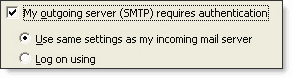
- Select the My outgoing server (SMTP) requires authentication check box. Leave the default setting, Use same settings as my incoming mail server.
- Click the Advanced tab and select the first This server requires a secure connection (SSL) check box.
- In the Incoming server (IMAP) box, enter the secure incoming port: 993
- Select the second This server requires a secure connection (SSL) check box.
- In the Outgoing server (SMTP) box, enter the secure outgoing port: 465.
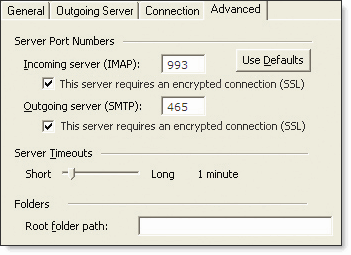
- Click the OK button then click the Next button, and lastly click the Finish button.
Linux Hosting Rate Comparison Guide
| Features | Biz-Host | Biz-Host Plus | Biz-Host Max |
|---|---|---|---|
| Hosting Fee | $9.95 Monthly |
$24.95 Monthly |
$49.95 Monthly |
| Set Up Fee | $25.00 | $25.00 | $25.00 |
| Storage | 5GB | 20GB | 50GB |
| Transfer | 10GB | 25GB | 50GB |
| CloudMail Accounts |
2 | 2 | 2 |
| Backups | Yes | Yes | Yes |
| FTP Access | Yes | Yes | Yes |
| Dedicated IP Address | $2.95 Monthly |
Yes | Yes |
| SSL Certificate | $79.00 Yearly |
$79.00 Yearly |
Yes |
| Webalizer Stats | Yes | Yes | Yes |
| MySql Database | 5 | 10 | 20 |
| CGI-Bin | Yes | Yes | Yes |
| Password Protected Folder | Yes | Yes | Yes |
| cPanel | Yes | Yes | Yes |
| Free SEO Tools | Yes | Yes | Yes |
| Site Builder * | Yes | Yes | Yes |
| Fantastico ** | Yes | Yes | Yes |
* Site Builder is an easy to use web interface with a point-and-click wizard that includes design and layout templates, page structure, sample text, and a powerful WYSIWYG editor for non-technical users.
** Fantastico offers easy 1 click installs on popular open source software used for Blogging, Photo Galleries, Content Management, Bulletin Boards, Shopping Carts, Wiki's and much more. Some of the common programs include Word Press, Joomla, Moodle, Mambo, OS Commerce, Drupal, PHPBB, Gallery, and many more.
Interested in signing up for services? Contact Us today!

 copyright Power Shift Online Services, all rights reserved. | 571 South Main Street, Stowe, VT 05672 | Toll-Free:
