


What We Do




To set up IMAP, do the following:
1. Tap Settings, Mail, Contacts, Calendars, Add Account, Tap Other and then Add Mail Account.
2. Enter the following information in the spaces provided:
- Name—Enter your first and last name. This is the name that will appear in the From field of messages you send.
- Address—Enter your entire email address (e.g., This email address is being protected from spambots. You need JavaScript enabled to view it.).
- Password—Enter the password for your email account.
- Description—Enter a descriptive name for the account (e.g., Work Account). This description will be visible only to you.
3. Tap the Save button.
Note: If IMAP is not already selected, tap the IMAP button.
4. Under both the Incoming Mail Server and Outgoing Mail Server sections, enter the following information:
- Host Name—Enter the secure server name: secure.emailsrvr.com
- User Name—Enter your entire email address (e.g., This email address is being protected from spambots. You need JavaScript enabled to view it.).
- Password—Enter the password for your email account.
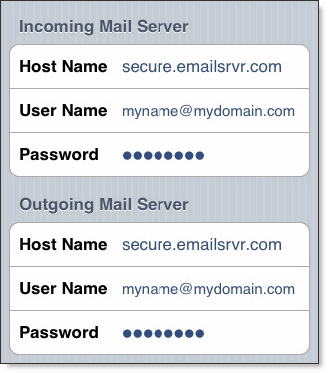
5. Tap the Save button and the device will verify settings and return to the Mail, Contacts, Calendars screen.
To set up Mac Mail for IMAP, perform the following steps:
1. Open Mac Mail. If this is the first time that it has been used, the Setup Assistant will appear. Otherwise, select File / Add Account.
Note: If your operating system is Tiger, click the Continue button, and select IMAP from the Account Type drop-down menu.
2. Enter the following information:
- Full Name—Enter your first and last name. This is the name that will appear in the From field of messages you send.
- Email Address—Enter your entire email address (e.g., This email address is being protected from spambots. You need JavaScript enabled to view it.).
- Password—Enter the password for your email account.
3. Click the Continue button and Enter the following information:
- Account Type—Select IMAP from the drop-down menu.
- Description—Enter a descriptive name for your mail account (e.g., Work Mail or Home Mail).
- Incoming Mail Server—Enter the secure server name: secure.emailsrvr.com
- User Name—Enter your entire email address (e.g., This email address is being protected from spambots. You need JavaScript enabled to view it.).
- Password—Enter the password for this account.
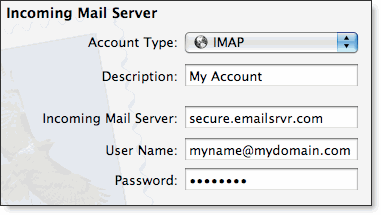
4. Click the Continue button and Mac Mail will now attempt to detect the incoming server settings. If the Incoming Mail Security window appears, do the following:
- Check the Use Secure Sockets Layer (SSL) box.
- In the Authentication drop-down menu, select Password.
- Click the Continue button.
5. Enter the following information:
- Description—This entry is optional. Enter a descriptive name for your mail account (e.g., Work Mail or Home Mail).
- Outgoing Mail Server—Enter the secure server name: secure.emailsrvr.com
- Check the Use only this server box.
- Check the Use Authentication box.
- User Name—Enter your entire email address (e.g., This email address is being protected from spambots. You need JavaScript enabled to view it.).
- Password—Enter the password for your email account.

6. Click the Continue button and Mac Mail will now attempt to detect the outgoing server settings. If the Outgoing Mail Security window appears, do the following:
- Check the Use Secure Sockets Layer (SSL) box.
- In the Authentication drop-down menu, select Password.
- Click the Continue button.
7. When the setup process is done, you will see an Account Summary window that summarizes your connections. Click the Create button.
Using IMAP Folders:
To simplify the organization of your messages, you can indicate which IMAP folders Mac Mail should use to store sent mail, drafts, spam, and trash.
1. Select Mail / Preferences, click the Accounts button, located at the top of the window and click once on your IMAP account, as it appears in the Accounts list.
2. Click the Mailbox Behaviors tab, clear all of the check boxes and close the Accounts window.
3. When prompted to save your changes, click the Save button.
4. In your IMAP folder, located in the Mailboxes pane (select View / Show Mailboxes to display the pane if it’s not there), do the following:
- Click once on the Sent, Drafts, Spam, or Trash folder.
- Select Mailbox / Use This Mailbox For.
- Select Sent, Drafts, Junk, or Trash from the resulting list in the sub-menu.
5. The selected folder will disappear from your IMAP list, and will now reappear as the corresponding Mac Mail folder.
To set up Android for IMAP, do the following:
1. From the Home screen, tap the Application button and then tap the Email icon.
2. If this is your first email account, you will be presented with an email setup screen, tap the Next button. Otherwise, press the Menu button, tap Accounts, press the Menu button, and tap Add account.
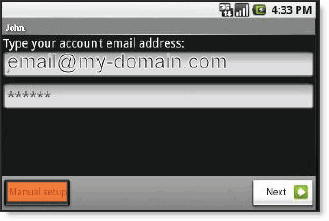
3. Enter your entire email address (e.g., This email address is being protected from spambots. You need JavaScript enabled to view it.) and in the second box, enter the password associated with your email account.
4. Tap the Manual setup button and then tap the IMAP button and enter the following information in the fields provided:
- Username—Enter your entire email address (e.g., This email address is being protected from spambots. You need JavaScript enabled to view it.).
- Password—Enter the password associated with your email account.
- IMAP server—Enter the secure server name: secure.emailsrvr.com
- Port—Enter the secure port number: 993
- Security type—Select SSL (always).
7. Tap the Next button. The device will connect to the internet and check your incoming settings.
8. On the Outgoing server settings screen, enter the following information in the fields provided:
- SMTP server—Enter the secure server name: secure.emailsrvr.com
- Port—Enter the secure port number: 465
- Security type—Select SSL (always)
9. Tap the Require sign-in checkbox then tap the Next button and the device will connect to the internet and check your outgoing settings.
Note: On the Account options screen, make changes, as desired.
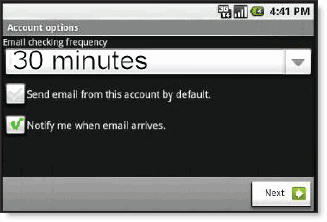
Tap the Next button. On the Set up email screen, enter your name in the Type your name field (this is the name that will be displayed in the From field of email messages you send) and then tap the Done button.
Windows Phone Setup
The following steps are required to setup an IMAP account on a Windows Mobile phone.
1. Locate the Settings options from within your application menu
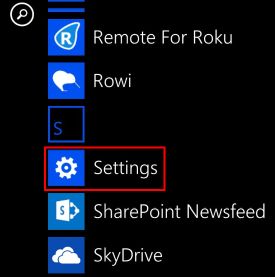
2. Select Email + Accounts
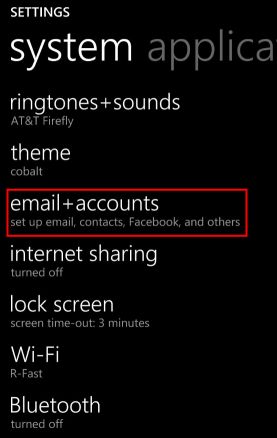
3. Select Add an Account
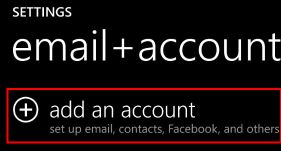
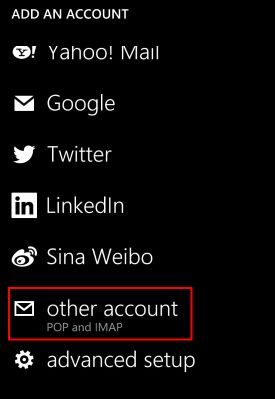
4. Select Other Account
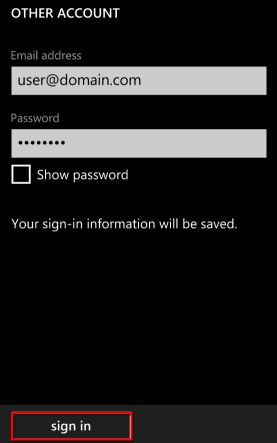
5. Enter your full email address and password for your account, then press the sign in button
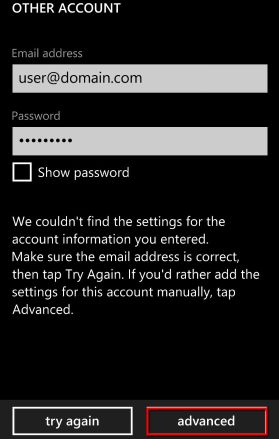
6. The device may or may not be able to auto-detect your settings. If it does not, press the Advanced option on this screen
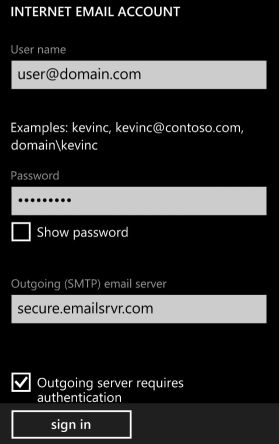
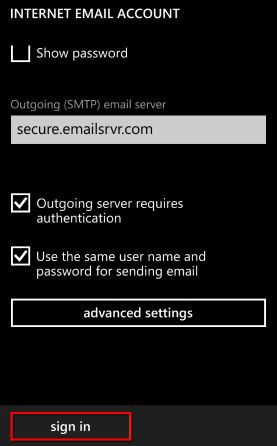
7. Add your desired Account name and fill in Your name. Then, use the following server settings:
(You will need to scroll down on this screen to see the additional fields)
- Incoming email server: secure.emailsrvr.com
- Account type: IMAP4
- Username: Full Email address
- Password: Email address password
- Outgoing (SMTP) email server: secure.emailsrvr.com
- Outgoing server requires authentication: Enabled
- Use the same user name and password for sending email: Enabled
Then, select sign in
8. This will complete your setup. You will see a new icon within your settings menu with the name of your new email account.

 copyright Power Shift Online Services, all rights reserved. | 571 South Main Street, Stowe, VT 05672 | Toll-Free:
